Cursor
Cursor
Cursor is an AI-powered integrated development environment (IDE) developed by Anysphere. It is a fork of Visual Studio Code.
Prerequisites
Before you can configure and use Cursor with Connect AI, you must first do the following:
-
Install the Cursor IDE.
-
Connect a data source to your Connect AI account. See Sources for more information.
-
Generate a Personal Access Token (PAT) on the Settings page. Copy this down, as it acts as your password during authentication.
-
Base64-encode your Connect AI credentials in the following format:
Base64("email:PAT").
Connect Cursor to the Connect AI MCP
-
In the Cursor IDE, go to Cursor Settings. Then click Tools & MCP, and then click New MCP Server. The file
mcp.jsonopens automatically in the Cursor IDE. -
Copy and paste the following into the
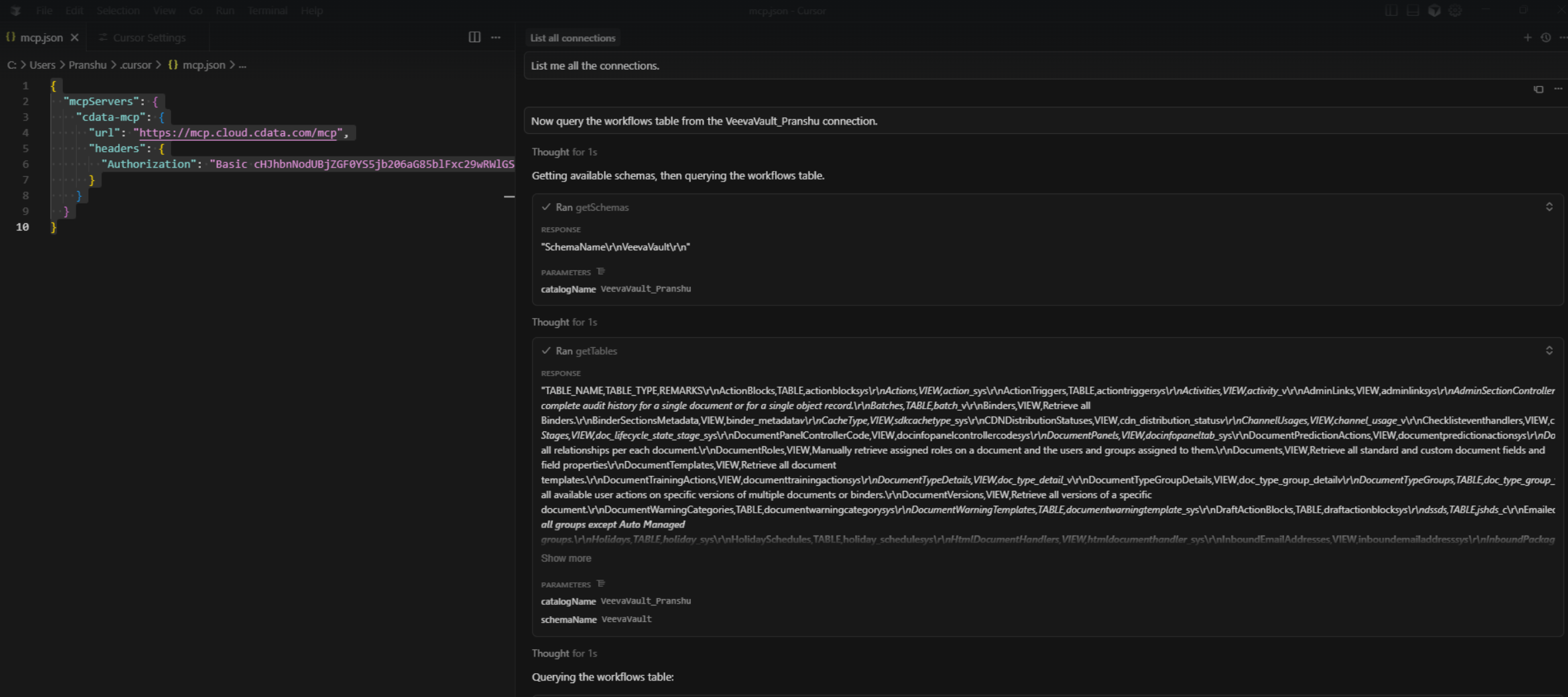
mcp.jsonfile. Replace the authorization header with the Base64-encoded credentials obtained in the prerequisites.{ "mcpServers": { "cdata-mcp": { "url": "https://mcp.cloud.cdata.com/mcp", "headers": { "Authorization": "Basic YOUR_BASE64_ENCODED_EMAIL:PAT" //Authorization obtained in prerequisites } } } } -
Return to Tools & MCP under Cursor Settings. Confirm that Cursor is connected to CData’s MCP Server. You should see cdata-mcp listed with a green indicator.
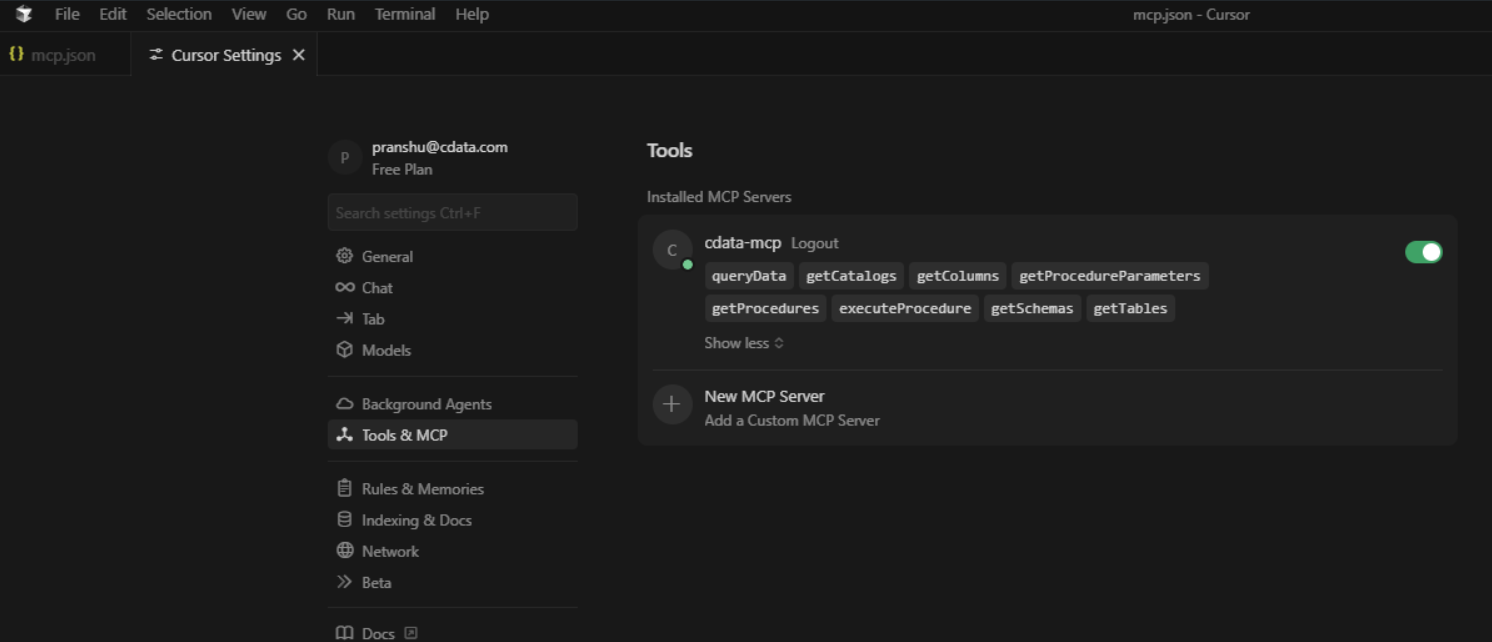
-
You can now chat with the assistant. Cursor lists the available tools, the connections, and a result set of a given table of a given connection. By default, Cursor asks for confirmation before executing MCP tool actions.